Printable template
Keyboard Diagram (Blank)
Keyboard to label keys.
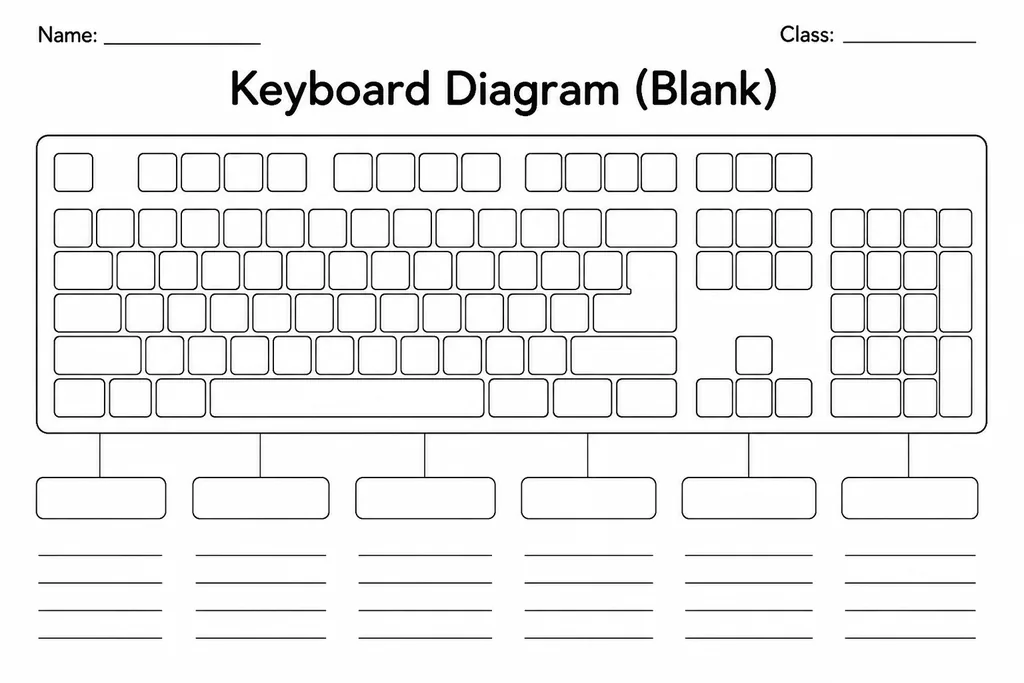
The Keyboard Diagram (Blank) is a to-scale printable illustration of a standard QWERTY keyboard layout with every key left empty, ready for students to label, colour-code, or annotate. Aimed at grades 2–6, it is the go-to resource whenever a teacher needs students to explore the keyboard physically or conceptually rather than just using it. Young learners practise locating and writing letter keys, number keys, and special function keys. Older students can colour-code zones—home-row keys in one colour, function keys in another—or use it as a reference tool for touch-typing drills. Parents find it useful for pre-typing practice at home before children move to a device. Because the diagram is completely blank, teachers can define exactly what students label, making it endlessly reusable across computing, literacy, and STEM sessions.
Learning objectives
- Identify and label the letter, number, and special keys on a standard keyboard
- Learn the concept of the home-row and touch-typing finger zones
- Build keyboard familiarity before or alongside device-based typing practice
- Develop awareness of key functions such as Enter, Backspace, Shift, and Caps Lock
- Support digital literacy and confident computer use
- Practise fine-motor labelling and attention to detail
How to use this template
- Download and print the blank keyboard diagram at full A4 or letter size for clear, writable keys.
- Choose a focus: label all keys, label only function keys, or colour-code the home-row and finger zones.
- Students write the correct character inside each blank key using pencil so corrections are easy.
- For a typing-readiness activity, students highlight their left-hand keys in one colour and right-hand keys in another.
- Display a completed reference diagram on the wall near each classroom computer station.
Classroom & home ideas
- Use as an introductory activity before the first typing lesson to activate prior knowledge about key locations.
- Assign colour-coding of the ASDF and JKL; home-row keys as a visual anchor for touch-typing.
- Have students label only the shortcut keys they have learned (Ctrl+C, Ctrl+Z, etc.) to create a personalised reference card.
- Compare an annotated QWERTY keyboard with an image of an AZERTY or Dvorak layout to spark a discussion about why keyboards differ.
- Parents can use the blank diagram as a pre-school or school-holiday activity to help young children memorise key positions.
Skills practised
Frequently asked questions
Does the blank keyboard diagram include a number pad on the right?
The standard version shows the main keyboard layout without a numeric keypad, matching the layout of most laptop and compact desktop keyboards that students encounter most often.
Is this template suitable for very young learners in grades 1 or 2?
Yes, with some scaffolding. Grade 2 students typically focus on labelling just the letter keys. Grade 1 learners can work on the template with a partner or in a teacher-led group, tracing the letters from a model.
Can the diagram be used for accessibility or assistive technology discussions?
Absolutely. It is a helpful visual aid for explaining on-screen keyboards, one-handed keyboard layouts, or key-guard overlays used by students with physical disabilities.
How is this different from a simple photograph of a keyboard?
The blank diagram removes all labels so students must actively recall or research each key's function rather than passively reading it. This active recall approach builds stronger memory of key positions.
Likes & comments
See what other teachers think and share a helpful note.
Create more worksheets in our Worksheet Studio
Generate fresh worksheets for any grade, topic, and language — free.
Open the Worksheet StudioRelated worksheets
Computer Parts Labelling
Unplugged Coding Grid
Game Design Document (Kids)
Flowchart Template (Blank Shapes)
Pseudocode / Algorithm Template
Website Wireframe Template
Internet-Safety Pledge Template
 For big organisations
 For schools
 For centers
 For team leaders
 For teachers
 AI and resources
 Printable worksheets
 Interactive simulations
 Teacher tools
 AI studio
 Ideas and research