Printable template
App / Game Storyboard
Screen frames plus notes.
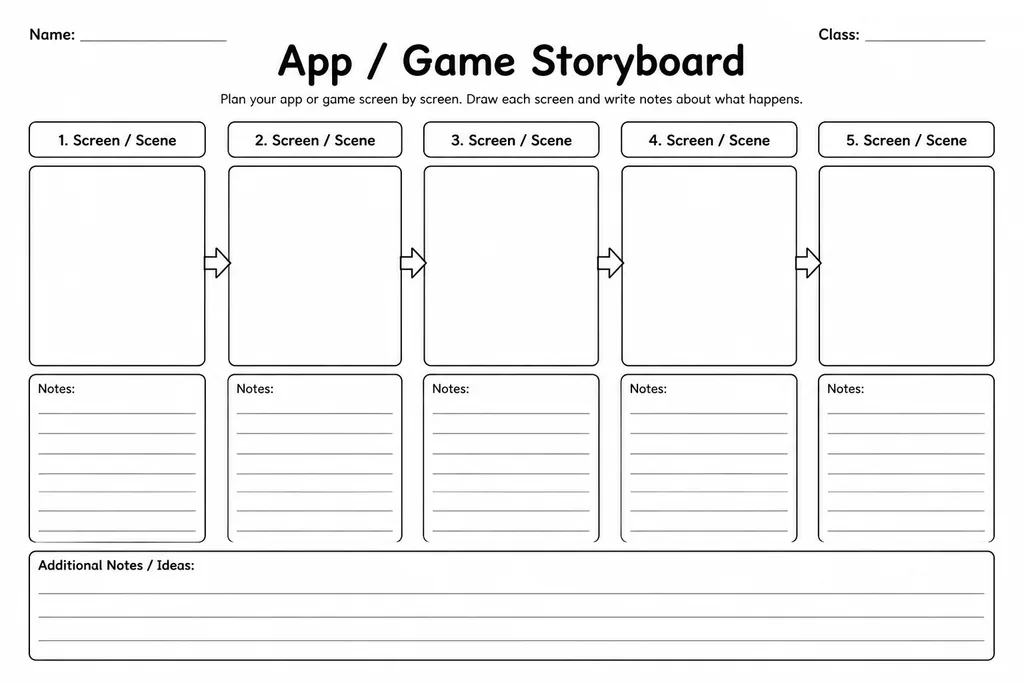
The App / Game Storyboard template gives students a series of labelled screen frames—each with a blank rectangle for the screen layout and a lined notes section beside it—so they can map out the flow of an app or game before writing a single line of code. Aimed at grades 3–8 technology and computing lessons, it bridges the gap between having an idea and being ready to build. Students sketch the home screen, game levels, menus, or app pages in order, then use the notes field to describe what each screen does and how the user moves to the next one. Teachers find it invaluable as a pre-Scratch, pre-Thunkable, or pre-web-design planning tool. It also makes student thinking visible, which simplifies feedback and assessment.
Learning objectives
- Visualise the screen-by-screen flow of an app or game before coding
- Practise user-interface planning and layout thinking
- Link narrative sequencing skills to software design
- Communicate design decisions clearly through annotated sketches
- Identify missing screens or broken navigation paths early
- Build habits of iterative design and planning revision
How to use this template
- Download and print the template; use one sheet per major flow section or print multiple sheets for longer projects.
- Explain the purpose of each frame—screen sketch on the left, navigation and feature notes on the right.
- Students sketch each screen of their app or game in sequence, starting from the opening or home screen.
- Add arrows or labels between frames to show how tapping a button moves the user to the next screen.
- Review storyboards as a class or in pairs before any coding begins, checking that every screen connects logically.
Classroom & home ideas
- Use as a mandatory planning gate before students open Scratch, App Inventor, or any game engine.
- Post completed storyboards on a wall gallery so students can review peers' designs and leave sticky-note feedback.
- Have students present their storyboard as a 'walkthrough pitch' to an imaginary investor or client.
- Compare the planned storyboard against the finished app at the end of a project to reflect on design changes.
- Adapt for UX day: ask each group to storyboard a well-known app from memory to analyse screen flow.
Skills practised
Frequently asked questions
How many screen frames does each printed sheet include?
The standard layout includes four frames per A4 or letter-size sheet. For projects with more screens, students simply print additional copies and number the frames sequentially.
Can this storyboard be used for websites as well as apps and games?
Yes. Each frame works equally well as a website page mockup. Students label the frame with the page name and use the notes column to describe navigation links and content.
What coding platforms pair well with this planning template?
It works seamlessly as a pre-build tool for Scratch, MIT App Inventor, Thunkable, Tynker, and beginner HTML/CSS projects—any platform where students create screen-based interactive experiences.
Is artistic skill required to use this storyboard?
Not at all. Students can use simple boxes, stick figures, and arrows. The goal is to show layout and flow, not produce polished artwork—rough sketches are entirely appropriate.
Likes & comments
See what other teachers think and share a helpful note.
Create more worksheets in our Worksheet Studio
Generate fresh worksheets for any grade, topic, and language — free.
Open the Worksheet StudioRelated worksheets
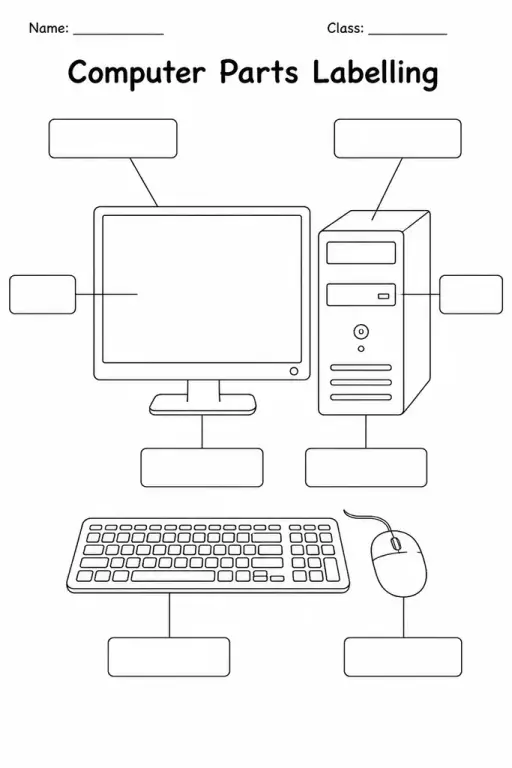
Computer Parts Labelling
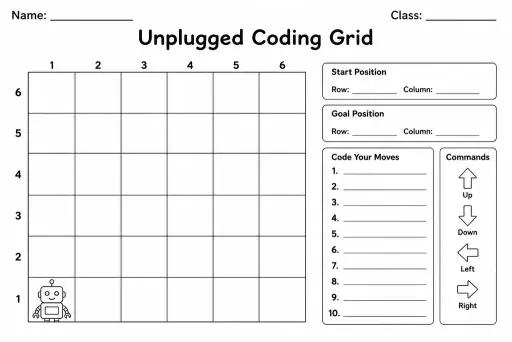
Unplugged Coding Grid
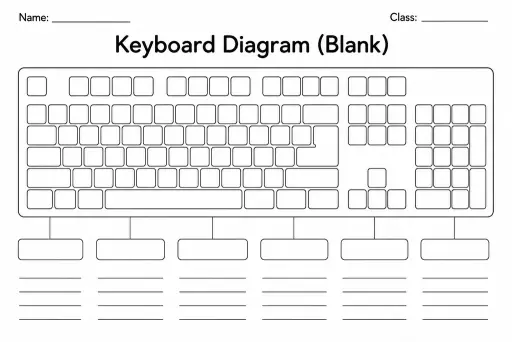
Keyboard Diagram (Blank)
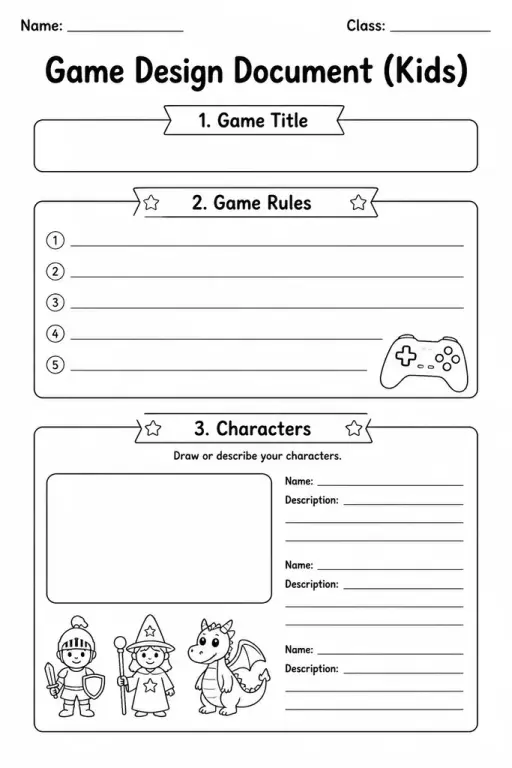
Game Design Document (Kids)
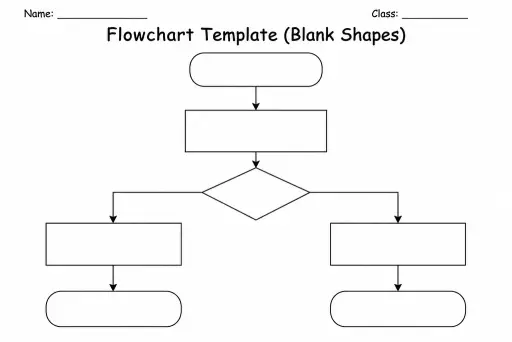
Flowchart Template (Blank Shapes)
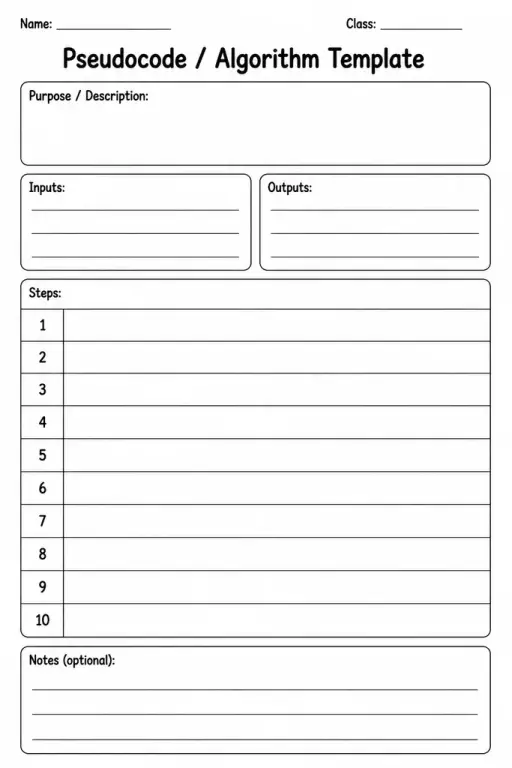
Pseudocode / Algorithm Template
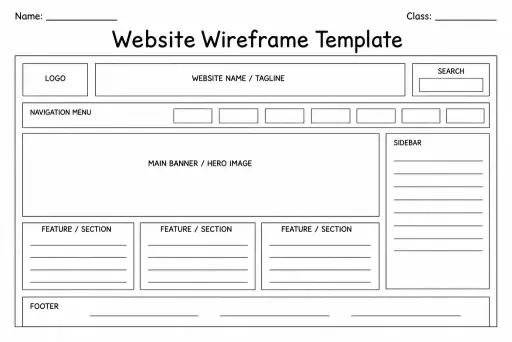
Website Wireframe Template
 For big organisations
 For schools
 For centers
 For team leaders
 For teachers
 AI and resources
 Printable worksheets
 Interactive simulations
 Teacher tools
 AI studio
 Ideas and research