Printable template
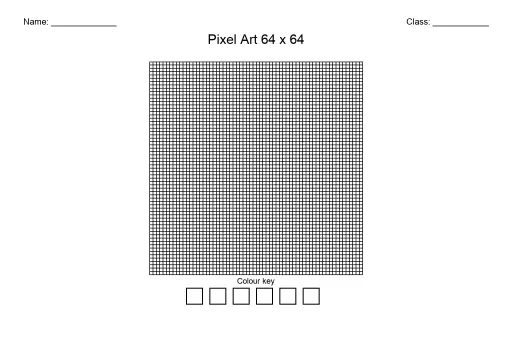
Pixel Colour-by-Number 64x64 (Blank)
64x64 design-your-own colour-by-number grid.

The blank 64x64 pixel colour-by-number template is the largest and most advanced in the series, offering 4,096 individually coded cells for students to fill with their own number-coded colour scheme. At this resolution, gradient shading, fine details, and complex multi-subject scenes are genuinely achievable on paper. Designed for grades 3–8, this template challenges students who are ready for an extended, detail-oriented project. Older students use it for independent study, after-school art clubs, or capstone creative projects. Teachers in STEM or computer science classes use it as a hands-on analogy for how digital images store colour data — each numbered cell mirrors a pixel's stored colour value. The format rewards planning, patience, and creativity in equal measure.
Learning objectives
- Create a highly detailed pixel artwork using a self-authored colour key
- Plan and manage a complex 4,096-cell composition across multiple sessions
- Understand how pixel colour encoding mirrors real digital image storage
- Develop advanced colour-planning skills including shading and gradients
- Produce a shareable, solvable puzzle that tests another student's accuracy
- Sustain focus and project persistence on a long-form creative task
How to use this template
- Print the blank 64x64 template on A3 paper for comfortable cell access — cells at A4 are under 4 mm wide and suit fine-tip pens only.
- Plan your design thoroughly on a thumbnail sketch before touching the grid.
- Build your colour key first, assigning numbers to all colours including shading variants.
- Work section by section, pencilling numbers into cells and confirming with your key as you go.
- Complete your own coloured answer key, then print a fresh numbered-only copy to give to a classmate as a challenge puzzle.
Classroom & home ideas
- Assign as a semester-long independent art project with milestone check-ins at planning, halfway colouring, and final exchange stages.
- Use the completed designs in a computer science lesson: photograph the grid and discuss how the numbered colour key is analogous to a colour palette index in PNG or GIF formats.
- Run an inter-class puzzle challenge where upper-grade students design 64x64 puzzles for lower-grade students to solve with guidance.
- Pair with a history project — students recreate a famous artwork or historical map in 64x64 pixel form, then write an artist's statement explaining their colour choices.
- Invite students to design a pixel mural that can be tiled — four 64x64 grids arranged in a 2x2 pattern create a 128x128 classroom display.
Skills practised
Frequently asked questions
How many colour key entries does the 64x64 template support?
The key section accommodates up to 20 numbered colour entries, allowing for rich palettes including multiple shades of the same colour for gradient effects.
Is the 64x64 colour-by-number appropriate for younger students?
The template is rated grades 3–8. Younger students in grade 3 may need adult support to plan their design; grades 5–8 are typically independent. The 8x8 or 16x16 blank templates are better starting points for K–2.
What is the best way to avoid numbering errors across 4,096 cells?
Work row by row from top to bottom, and use a ruler or sticky note to track your current row. Pencil in numbers first, then review a row before inking or colouring to catch mistakes early.
Can this template be used digitally?
Yes. Import the PDF into a tablet app such as GoodNotes or Notability, type or draw numbers into cells using a stylus, and fill colour regions using the app's fill tool. This eliminates the need for physical printing.
Likes & comments
See what other teachers think and share a helpful note.
Create more worksheets in our Worksheet Studio
Generate fresh worksheets for any grade, topic, and language — free.
Open the Worksheet StudioRelated worksheets
Colour Wheel Template
School Event Coloring Pages Pack 2
Song-Writing Template
Sketchbook Page Template
Pixel Art Grid 64x64 (Blank)
Pixel Art Grid 32x32 (Blank)
Pixel Art Grid 16x16 (Blank)
 For big organisations
 For schools
 For centers
 For team leaders
 For teachers
 AI and resources
 Printable worksheets
 Interactive simulations
 Teacher tools
 AI studio
 Ideas and research