Printable template
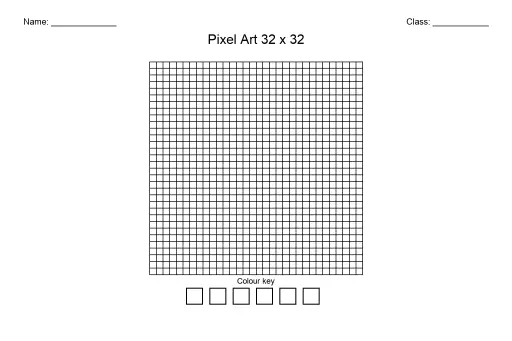
Pixel Colour-by-Number 32x32 (Blank)
32x32 design-your-own colour-by-number grid.

The blank 32x32 pixel colour-by-number template provides 1,024 cells for students to craft richly detailed, self-designed pixel puzzles. At this resolution, portrait-style images, detailed animals, or multi-element scenes become achievable, making it a step up in challenge and reward from the 16x16 version. Ideal for grades 2–8, the template suits students who want a satisfying longer-term art project or a more complex puzzle to share with peers. Art teachers use it for unit-long pixel art studies, while STEM teachers leverage it to demonstrate how image resolution and colour depth work. The included number-to-colour key section allows students to build a full coding scheme before starting, practising advance planning and systematic thinking.
Learning objectives
- Design a detailed pixel artwork requiring multi-step planning
- Build and manage a colour-coding key for a complex composition
- Understand the relationship between grid resolution and image detail
- Apply systematic thinking to fill 1,024 cells accurately and consistently
- Develop project persistence and attention to detail over multiple sessions
- Create a peer-shareable puzzle that tests colour-code literacy
How to use this template
- Print the blank 32x32 template — for smaller cell sizes, standard A4 works; for easier colouring, use A3.
- Sketch your intended design on a separate sheet first to map out major colour regions before committing.
- Assign numbers to each colour in the key and lightly pencil numbers into every cell of the grid.
- Colour your own copy completely to serve as the answer key.
- Print a clean blank copy, fill in only the numbered grid (not the colour key's colours), and share it as a puzzle for someone else to solve using your key.
Classroom & home ideas
- Use as a multi-day art project: students plan on day 1, code numbers on day 2, colour on days 3–4, and exchange puzzles to solve on day 5.
- Connect to a science unit — students design pixel diagrams of cells, ecosystems, or planets, then write a short explanation of each colour's meaning.
- Run a pixel portrait challenge: students design a 32x32 self-portrait, then classmates try to solve and guess whose portrait it is.
- Incorporate into a maths lesson on area: students calculate the area covered by each colour and express results as fractions, decimals, and percentages of 1,024.
- Display finished puzzles on a classroom 'pixel gallery' wall with only the grid visible — visitors solve them to reveal the hidden image.
Skills practised
Frequently asked questions
How long does completing a 32x32 colour-by-number design typically take?
Planning and numbering usually takes one 30–45 minute session. Colouring the answer key takes another 1–2 sessions depending on the student's pace. Budget 3–4 class periods total for a careful, detailed result.
What colouring tools work best at 32x32 scale?
Fine-tip markers or sharp coloured pencils work best at A4 size, where cells are approximately 6–7 mm. At A3, standard coloured pencils are comfortable. Avoid broad-tipped markers which bleed over cell borders.
Can students work on the 32x32 grid collaboratively?
Yes. Divide the grid into quadrants and assign one quadrant per student or pair. Each group fills their section using the same shared colour key, then the sheet is assembled for display.
Does the blank template include grid line numbers or coordinates?
The standard blank 32x32 colour-by-number template does not include labelled coordinates. If you need labelled axes for maths integration, use the separate Pixel Grid with Coordinates template instead.
Likes & comments
See what other teachers think and share a helpful note.
Create more worksheets in our Worksheet Studio
Generate fresh worksheets for any grade, topic, and language — free.
Open the Worksheet StudioRelated worksheets
Colour Wheel Template

School Event Coloring Pages Pack 2
Song-Writing Template
Sketchbook Page Template
Pixel Art Grid 64x64 (Blank)
Pixel Art Grid 32x32 (Blank)
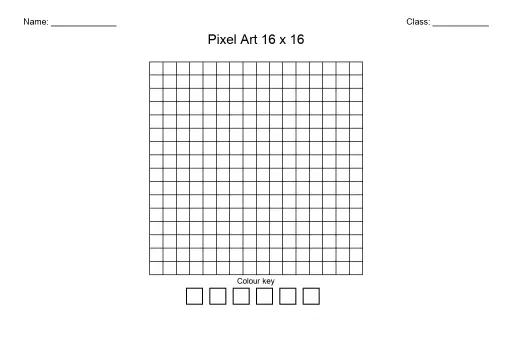
Pixel Art Grid 16x16 (Blank)
 For big organisations
 For schools
 For centers
 For team leaders
 For teachers
 AI and resources
 Printable worksheets
 Interactive simulations
 Teacher tools
 AI studio
 Ideas and research