
Colour Wheel Harmony
- Math
Comments
Related to this simulation
Picked by meaning from games, worksheets, simulations, teacher tools and videos.



About this simulation
This simulation lets students build color palettes on a 3D wheel. Dragging a handle, or tapping the wheel, picks the base colour; hue is the angle and saturation is the distance from the center. A Scheme selector sets complementary, analogous, triadic, tetradic or split-complementary harmony, and sliders change brightness and rotate the palette. A model room shows the dominant colour on the walls, a secondary colour on the sofa and rug, and an accent on the vase and frame, following the 60-30-10 rule. Readouts list the base colour, the angles and the hex codes. It teaches hue, saturation, brightness and why some color combinations look balanced.
What students can explore
- Drag the base handle around the wheel and watch the walls and furniture change color.
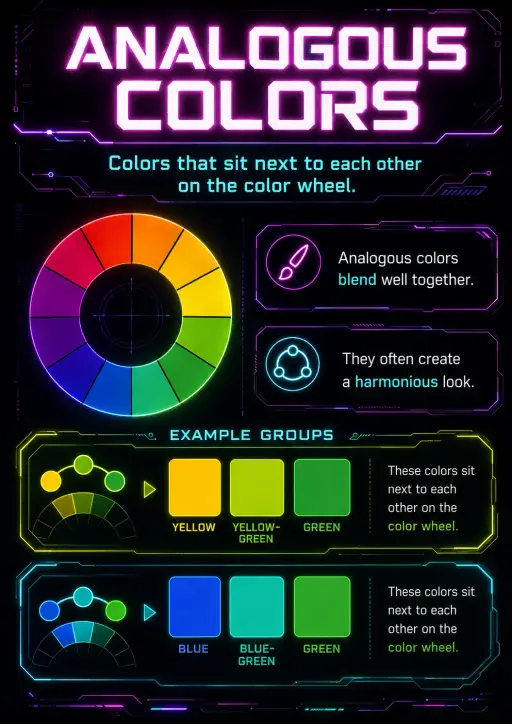
- Switch Scheme between Complementary and Analogous and compare the angles in the readout.
- Choose Triadic and use Rotate palette to spin all three colors around the wheel.
- Lower Brightness and see how the room looks with darker colors.
- Pick a palette you like and copy its hex codes from the readout.
Learning objectives
- 1Identify complementary, analogous, triadic and tetradic colors by their angles on the wheel.
- 2Describe hue, saturation and brightness.
- 3Apply the 60-30-10 rule to choose a dominant, secondary and accent color.
- 4Evaluate whether a palette looks balanced in a room.
Questions teachers ask
Is it free?
Yes. Colour Wheel Harmony is free, needs no sign-up and runs in any modern browser, including whiteboards, tablets and phones.
What are complementary colors?
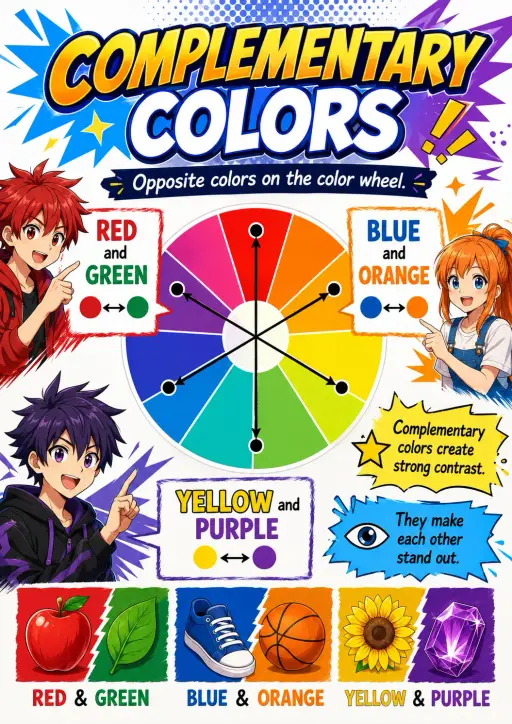
They sit directly opposite each other on the wheel, 180 degrees apart, such as blue and orange. They contrast strongly when used together.
What is the 60-30-10 rule?
A design guide: use a dominant colour for about 60 percent of a space, a secondary colour for 30 percent and an accent colour for 10 percent.
How do I pick the base colour?
Drag a handle on the wheel or tap anywhere on it. Angle around the wheel sets the hue and distance from the center sets how vivid the colour is.
Embed this simulation
Drop it into your LMS, blog, or class site — free.
<iframe src="https://kiwibee.io/en/simulations/colour-wheel-harmony-3d-simulation/embed" title="Colour Wheel Harmony | KiwiBee" loading="lazy" allowfullscreen style="width:100%;height:min(70vh,620px);min-height:420px;border:0;border-radius:16px"></iframe>Bring interactive science into your classroom
KiwiBee's free teacher workspace brings lesson planning, worksheets, classroom tools, and gradebook together in one place.
Start free and create your first classWatch KiwiBee on YouTube
Short KiwiBee videos for teachers and schools. Subscribe, or follow KiwiBee wherever you are.
 Home
 All solutions
 Pricing
 About us
 KiwiBee for Non-profits
 Events & webinars
 For big organisations
 For schools
 For centers
 For team leaders
 For teachers
 Resources
 Printable worksheets
 Interactive simulations
 Teacher tools
 Ideas and research


