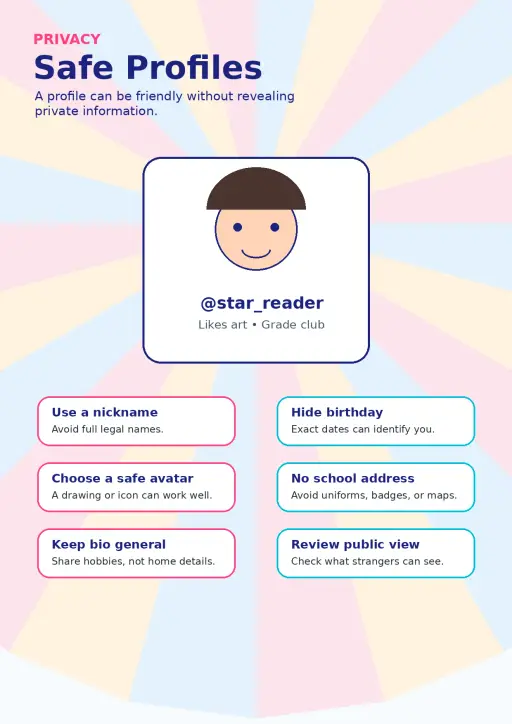

Privacy: Two-Factor Authentication and One-Time Codes
1 pagePrintable PDFScroll to explore
More like this worksheet
Picked by meaning from games, worksheets, simulations, teacher tools and videos.
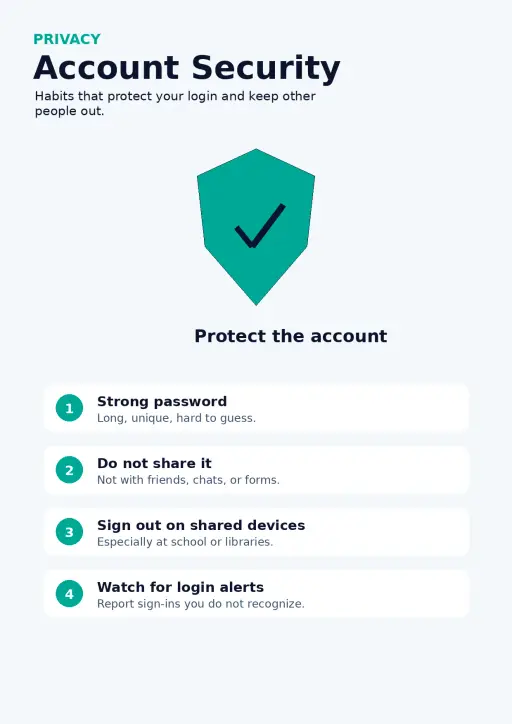 WorksheetPrivacy: Account Security, Four Habits to Protect a Login
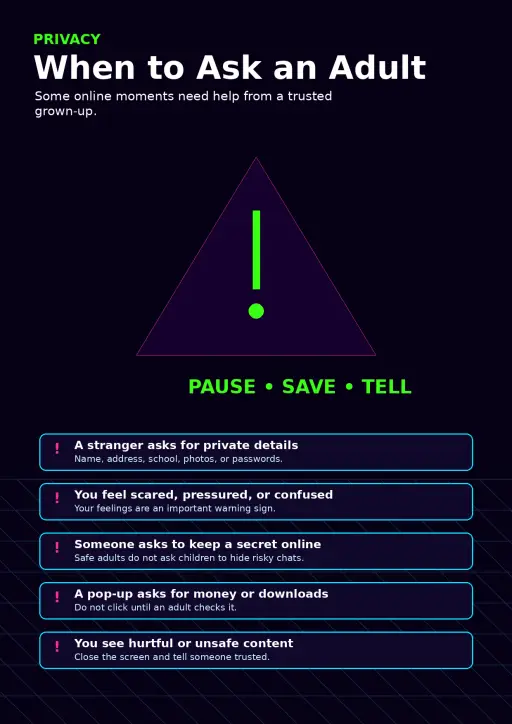 WorksheetPrivacy: When to Ask an Adult for Help Online
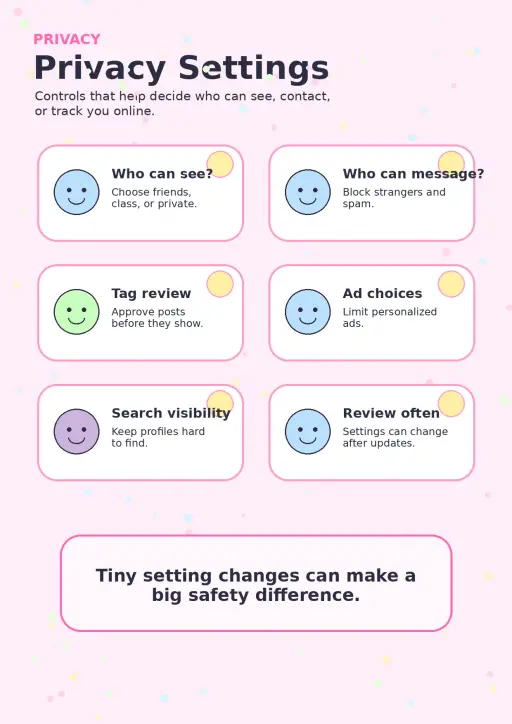 WorksheetPrivacy: Privacy Settings That Control Who Sees and Contacts You
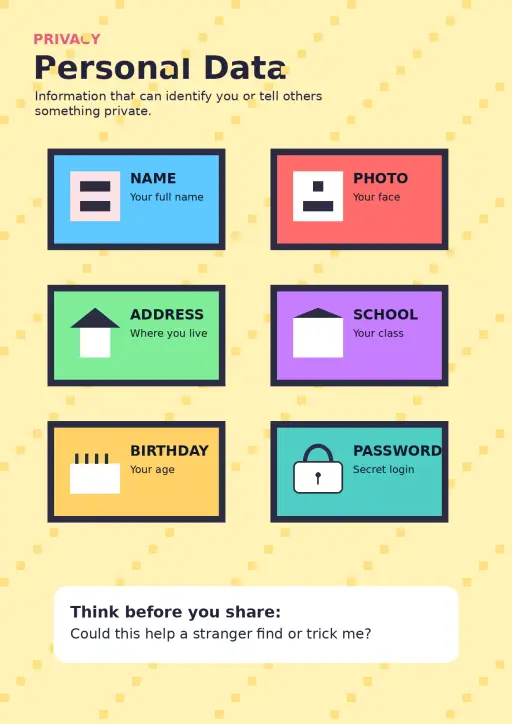 WorksheetPrivacy: Personal Data, Six Things Not to Share Carelessly
 GamePasswords, Permissions and Help
 GameA Digital Footprint Case Study
 GameA Kind and Private Digital Choice
 GameAuthentication and Access Control Quiz
This Grades 3-8 ICT infographic is headed Two-Factor Authentication. A sign-in screen with a password box sits beside a phone showing a code. Below are Step 1: Enter password, Step 2: Check your trusted device or app, Step 3: Type the one-time code, and a Safety note: Never send the code to someone else.
Learning objectives
- Describe two-factor authentication as a second proof that protects an account
- Follow three steps: enter the password, check a trusted device, type the one-time code
- Never send a one-time code to someone else
How to use this worksheet
- Select “Sign in / Sign up to download”, then sign in with Google or email to get the WEBP, IMAGE from KiwiBee Printables.
- Print at home or in class for Grades 3–8; it's no-prep, with no extra materials needed.
- Hand it out as classwork, homework, or a quick warm-up.
Good for
ClassworkHomeworkWarm-upCentersSmall groups
Curriculum standards
Cambridge
- 6DC.06Describe the different types of user authentication, including password, fingerprint and facial recognition.Cambridge Primary Computing (0059) — Stage 6 › Networks and Digital Communication › Networks and Digital Communication
Learning objectives © UCLES (Cambridge University Press & Assessment), quoted with attribution.
More worksheets like this
Likes & comments
See what other teachers think and share a helpful note.
Loading likes and comments…
Worksheet Studio
Open Worksheet StudioNeed a different version? Make your own.
Generate a fresh worksheet for any grade, topic and language. Free.
 Home
 All solutions
 Pricing
 About us
 KiwiBee for Non-profits
 Events & webinars
 For big organisations
 For schools
 For centers
 For team leaders
 For teachers
 Resources
 Printable worksheets
 Interactive simulations
 Teacher tools
 Ideas and research


