Use Book-Linked Video Without Separating It from the Lesson Plan
 By KiwiBee Team
Last updated September 2, 2026
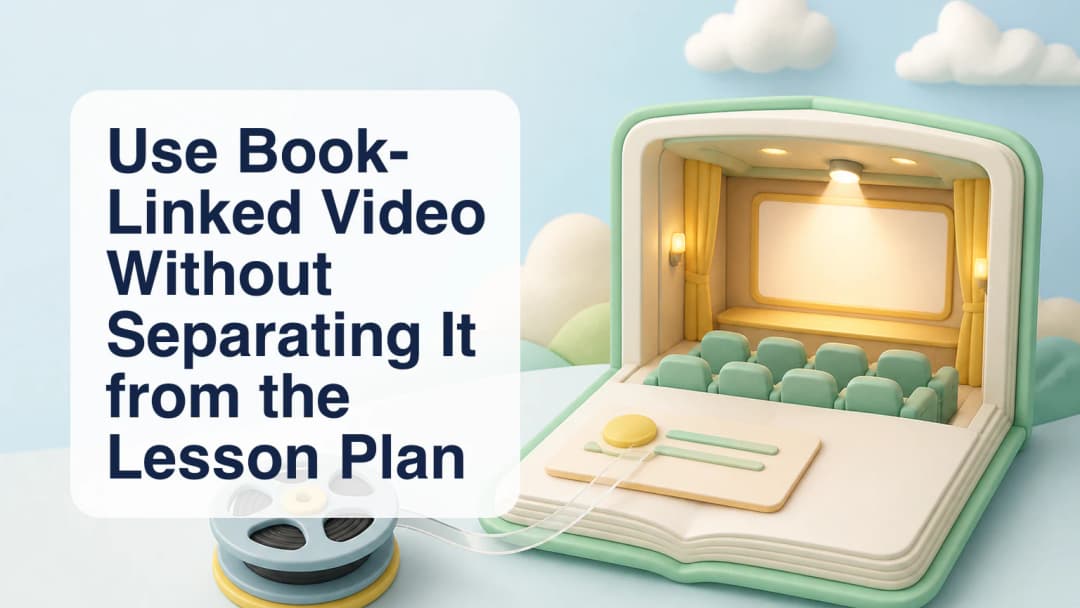
Book-linked classroom video is most useful when it stays attached to the material a teacher is already reading. In KiwiBee, publisher-supplied video belongs to one exact curriculum book. It can appear when an open Student or Learner Book, Workbook, or Activity Book has an approved video row linked to that material. Availability depends on the organization's curriculum setup, the class attachment, and the uploaded asset. It is not a promise that every curriculum, title, unit, or page includes video.
Start from the exact book and lesson scope
The class, curriculum, and book selection define the boundary. Lessons/My Materials and ClassSpark use a separate bounded query for linked video and group the results by the exact book identifier. Video does not appear as a standalone item in the Subject core-material browser. If the open book has no exact link, there is no Video control and no legacy fallback. Teacher's Books are also excluded unless an official teacher-video product and supported target type are introduced.
Explore class materials in KiwiBee.
Play the linked video beside the book
When a linked title is available, the shared reader places a Video dropdown beside Audio. Choosing a title opens a private HTML5 player above the document, while the book remains visible at full width. This keeps the clip, page, and lesson discussion in one flow. Starting video stops audio, and starting audio closes video, so two sound sources do not compete. A clear close button stays available while the private URL loads, plays, or reports an error.
See AI worksheet tools for teachers.
Check access and teaching fit before class
Playback is session-bound. KiwiBee verifies the tenant, curriculum, class, approved academic role, and active core-material attachment before returning a short-lived signed URL. The browser never builds a storage address from client data, and the source file does not become a public video library. Supported uploaded formats include ordinary browser video types such as MP4, WebM, and Ogg video. Publisher-only player content is not copied unless an authorized source file or normal export is available.
- Open the intended class and curriculum.
- Choose the Student/Learner Book or Workbook/Activity Book used by the lesson.
- Confirm that a Video control appears for that exact book.
- Select the relevant linked title and keep the book page visible.
- Check playback, duration, accessibility, and instructional purpose before students arrive.
- Close the player or return to audio without running both media sources together.
A good video moment begins with the lesson objective, not with browsing for something entertaining. Preview the whole clip, verify publisher permission, plan pauses or discussion prompts, and prepare an alternative when the link or network is unavailable. The value is continuity: the teacher can move from book to video and back without detaching media from the curriculum context.
Explore the platform
Continue with KiwiBee
Choose the KiwiBee workspace or resource library that fits what you need next.
 For big organisations
 For schools
 For centers
 For team leaders
 For teachers
 AI and resources
 Printable worksheets
 Interactive simulations
 Teacher tools
 AI studio
 Ideas and research