How Curriculum-Linked AI Lesson Planning Keeps Class Context Attached
 By KiwiBee Team
Last updated August 30, 2026
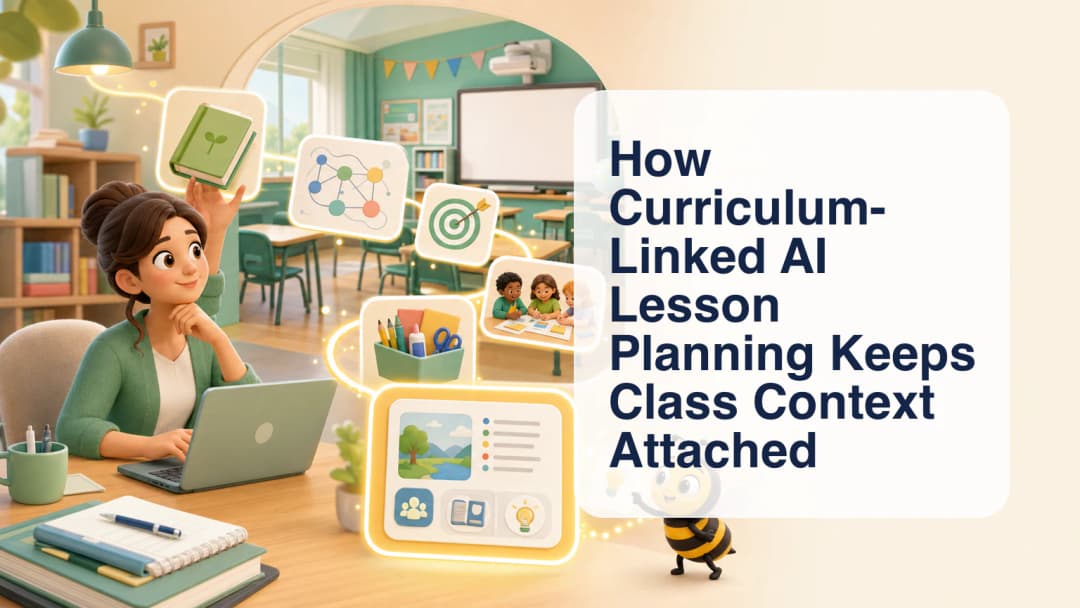
Curriculum linked AI lesson planning works best when the assistant knows which class, curriculum, and lesson the teacher is working on. KiwiBee’s Lessons AI follows that principle: the teacher selects the relevant context, starts a conversation, and uses the result as an editable draft rather than a finished answer.
Select context before generating
The resource workflow can carry selected class, curriculum, and lesson scope into the conversation. That gives the assistant a grounded starting point and helps prevent a planning request from becoming a generic prompt detached from the school’s own structure. Teachers can then ask for the resource they need within that context.
KiwiBee supports several resource paths in the teacher workspace, including materials, lesson plans, worksheets, and printables. A teacher might begin with a lesson-plan outline, refine an activity for the selected class, or turn the same context into a worksheet draft. The AI lesson plan workflow is designed to sit alongside the school’s curriculum workspace, not replace it.
Keep the conversation editable
Conversation-first planning makes revision part of the workflow. Instead of accepting the first output, a teacher can clarify the objective, adjust the level of detail, request a different activity structure, or remove material that does not fit. The selected context remains the reference point for those follow-up requests.
This is assistance, not automatic curriculum compliance. An AI response can misunderstand a standard, use unsuitable examples, or propose an activity that does not fit the class. The teacher should check subject accuracy, timing, language, accessibility, safeguarding, and alignment before using or sharing anything.
A practical review sequence
- Open Lessons and select the intended class and curriculum context.
- Choose the lesson or resource direction that matches the teaching goal.
- Ask for a draft with explicit constraints, such as duration, format, or available materials.
- Revise the response in conversation rather than treating it as final.
- Review every section against the curriculum source and the needs of the actual class.
- Edit and save only the version the teacher is prepared to own.
Curriculum leaders can support this process by agreeing on a review checklist. For example, teachers might verify the stated standard, intended learning, sequence, vocabulary, assessment opportunity, and adaptations before a draft becomes a classroom resource. A shared checklist keeps quality expectations visible without pretending that one generated format fits every subject or age group.
A useful pilot starts with one familiar lesson rather than a whole programme. The teacher can compare the draft with the source curriculum, note which follow-up instructions improved it, and record any edits made before use. That evidence helps colleagues discuss prompt quality and review habits using a concrete classroom example.
The benefit is a clearer planning trail: context, request, draft, revision, and professional review stay connected. Results will vary with the selected data and the teacher’s instructions, so there is no fixed accuracy or time-saving promise. Create an account to explore curriculum-aware resource planning in your available workspace.
Explore the platform
Continue with KiwiBee
Choose the KiwiBee workspace or resource library that fits what you need next.
 For big organisations
 For schools
 For centers
 For team leaders
 For teachers
 AI and resources
 Printable worksheets
 Interactive simulations
 Teacher tools
 AI studio
 Ideas and research