Windows Laptops as a Teacher: Tips and Tricks
Six practical Windows features and shortcuts that save teachers time every day.
 By KiwiBee· KiwiBee
Last updated May 26, 2026
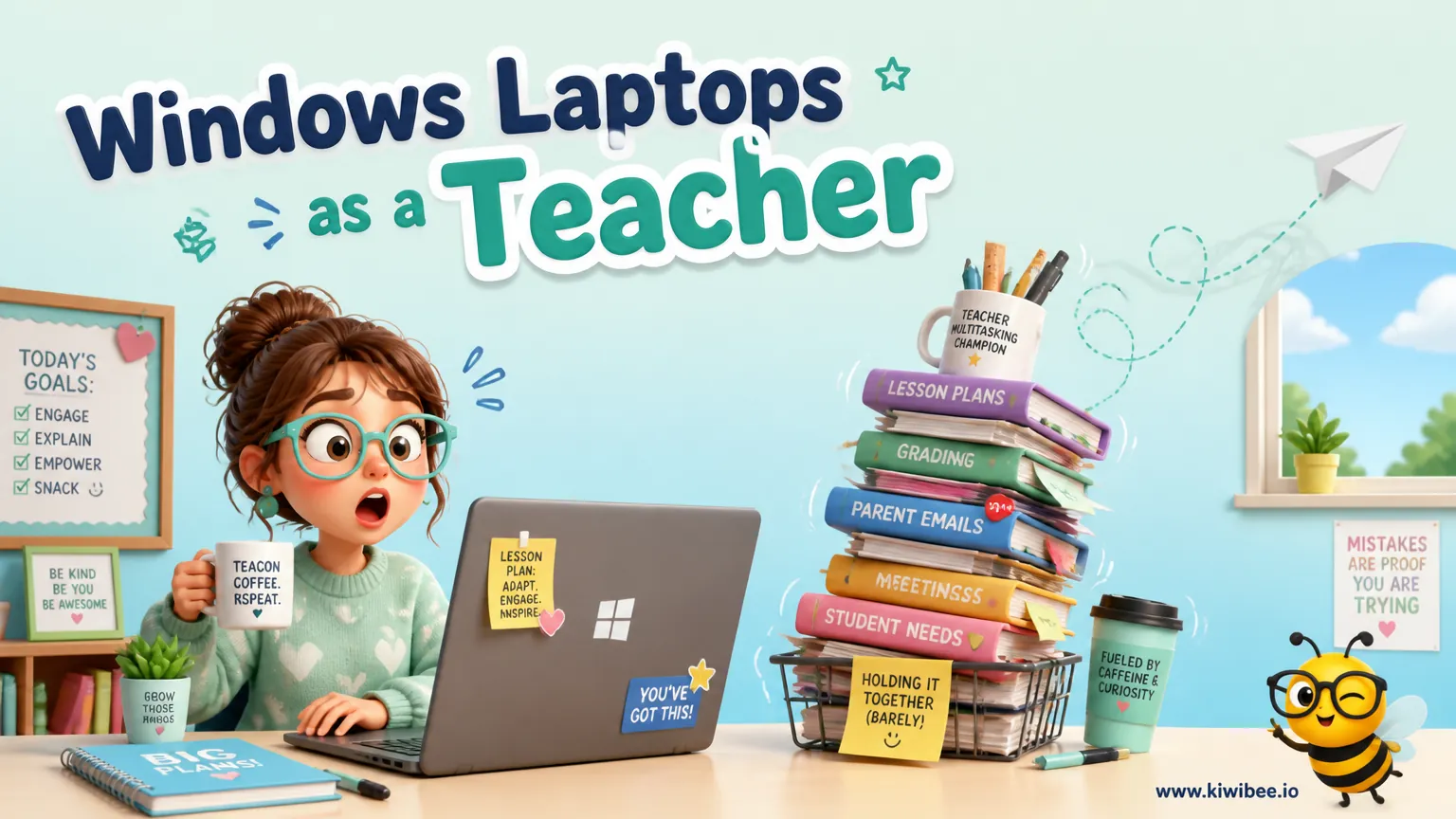
Four Windows tricks that quietly run my teaching day
Every teacher I know has a laptop they only half use. They open Chrome, open a few tabs, type into Word, and never touch the operating system underneath. After years of this, I started learning the tools that come free with Windows and they have saved me more time than any teaching app. Here are the four I would teach any new teacher on day one.
1. PowerToys — to stop the laptop sleeping mid-lesson
The single most useful tool I have installed in years. PowerToys is a free Microsoft utility — install once, use forever — that includes a feature called Awake. Turn Awake on, your laptop stays awake for as long as you want (one hour, two hours, indefinitely) regardless of inactivity.
Why this matters in teaching: I am at the front of the room, I have not touched the laptop in fifteen minutes because I am running an activity, and the screen sleeps mid-lesson. The kids see a black screen. I have to walk over and unlock it. Every. Single. Time.
PowerToys Awake fixes it permanently. Download from microsoft.com. Free. Install in two minutes. The fifteen-second daily interruption you have been tolerating disappears.
2. Notepad — for stripping formatting out of anything
Copy a paragraph from a website, paste it into Word, and you inherit every font, colour, and formatting quirk from the source page. The result is unusable garbage that takes longer to fix than to type.
The fix: paste it into Notepad first. Notepad strips every formatting attribute and gives you back pure plain text. Copy from Notepad, paste into Word, ChatGPT, your lesson notes, anywhere — and you get clean text without the design tax.
This trick is twenty years old and most teachers still do not use it. Make Notepad your formatting cleanser. Every Windows machine has it. Pin it to your taskbar.
3. Fn + F11 — bigger screen view
This is a shortcut that exists on most modern laptops and almost nobody knows about. Pressing Fn + F11 (or sometimes Win + Plus depending on your model) zooms the entire screen. Useful when you need to show something at the back of the room and the projector is at an awkward angle, or when you are reviewing a small element with a student crowded around your laptop.
Faster than fiddling with screen resolution. Faster than ctrl-plus inside an application. Works system-wide. Once you learn it, you use it weekly.
4. Snipping Tool — with text extraction
The Snipping Tool got a quiet upgrade recently. It now extracts text from any image. Snip a section of a screen — a worksheet PDF, a slide, a picture of student work — and there is a button to copy the text directly to your clipboard. OCR built into Windows, for free.
Use cases: pulling text out of a student's photographed homework so I can quote it in their report. Copying text from a PDF that has been scanned as an image. Extracting text from a slide deck a colleague sent that has no editable version. Things that used to take ten minutes of retyping now take three seconds.
Beyond the laptop tricks
These four are operating-system level — they save time before you even open a teaching app. They pair well with the other things I now run inside the browser: lesson planning, AI assistance, parent communication, gradebook updates. All of those live inside KiwiBee, which is browser-based, so any laptop — Windows, Mac, ChromeOS — can run my whole teaching workflow. Specifically the daily wins come from the AI teaching assistant, the free AI worksheet generator, and the connected gradebook. The Windows tricks save minutes. The teaching platform saves hours.
The lesson hidden in this post
The cheapest productivity gains for teachers are usually the boring operating-system features they did not know existed. Spend an afternoon learning the tools your computer already has. The payoff is bigger than any new app you can install.
Where this fits in KiwiBee
Whatever laptop you buy, KiwiBee runs in any browser and gives you an AI teaching assistant, a free AI worksheet generator, and a connected gradebook and parent portal. Try it free at app.kiwibee.io.
Explore the platform
Continue with KiwiBee
Choose the KiwiBee workspace or resource library that fits what you need next.
Related posts
Top Gadgets to Use in the Classroom for Kindergarten and Primary Teachers
From laser pointers to self-inking stamps, discover five affordable gadgets that help kindergarten and primary teachers manage attention, deliver lessons, and give instant feedback.
NotebookLM as a Teaching Assistant: A Comprehensive Guide
Google's NotebookLM transforms how teachers and students interact with learning materials. From mind maps to audio summaries, here are seven features every educator should know.
Top 5 Apps to Use in the Classroom
From all-in-one school management to interactive quiz games, these five apps will transform how you teach, engage students, and manage your classroom every day.
 For big organisations
 For schools
 For centers
 For team leaders
 For teachers
 AI and resources
 Printable worksheets
 Teacher tools
 AI studio
 Ideas and research