Use Multi-Select Feedback for a Group of Students in ClassSpark
 By KiwiBee Team
Last updated September 5, 2026
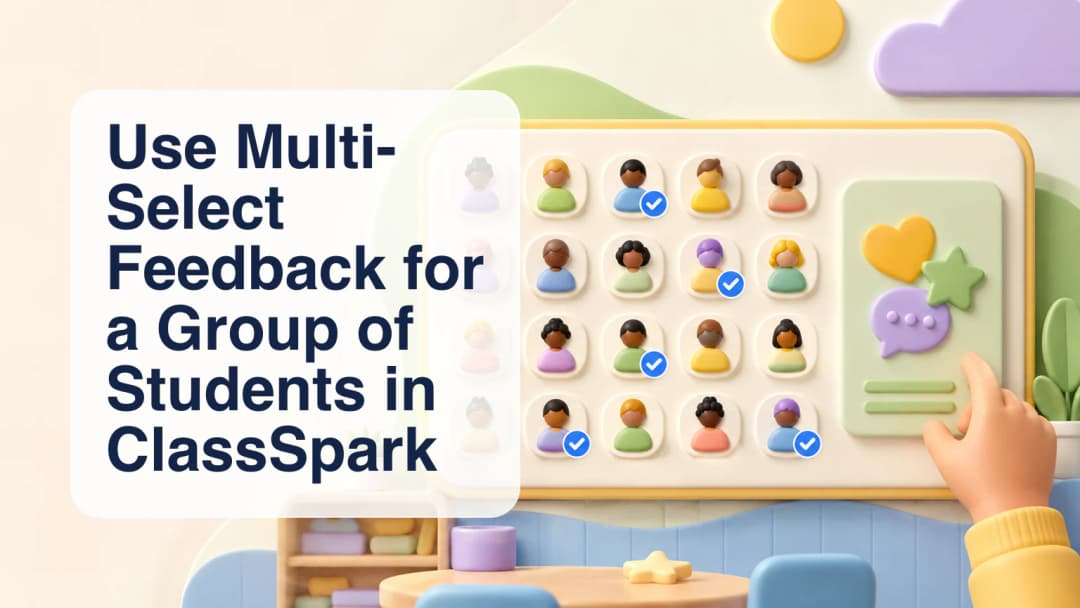
A classroom moment often belongs to a group rather than one learner or the entire class. Several students may complete a transition well, collaborate carefully, or need the same factual reminder. ClassSpark Multi-select lets the teacher choose that exact subset before applying shared behavior feedback. The workflow begins with nothing selected, so the software does not decide the recipients. The teacher remains responsible for checking the active class, the participant names, and whether one category accurately describes what each chosen learner did.
Begin with No activity for behavior feedback
Multi-select changes meaning with the activity selector. When the top selector is set to No activity, selected participants can receive behavior feedback. If an activity is active, the same control opens academic evaluation instead; guests become ineligible, and linked standards require their own scores. An older activity without linked standards shows guidance rather than silently falling back to behavior. Confirm No activity before building a behavior group, or intentionally continue with the activity-scoring path.
Understand the active ClassSpark context.
Select only the participants involved
Open Multi-select and tap the intended cards one by one. It always starts empty. Eligible cards show a hollow blue check circle; selected cards show a filled blue circle with a white check. The card itself does not gain a ring, tint, or shadow, so the corner circle is the authoritative indicator. Absent participants cannot be selected. With No activity, eligible ClassSpark guests may be included; with an activity, guests remain unavailable. Review every check before opening the feedback choices.
Keep group behavior records precise.
Apply one category and verify persistence
After at least one person is selected, the action displays the selected count and opens the shared positive and needs-work choices. Choose the category that matches the observation. ClassSpark updates the selected cards optimistically, plays the configured tone, and shows point bubbles. Enrolled students are written to scoped behavior incidents while guests use the separate guest points path. If a write fails, the interface rolls back optimistic totals and reloads the authoritative roster. Animation confirms the interaction, not durable storage.
- Open the correct class and confirm No activity.
- Select Multi-select and notice that no one is preselected.
- Tap only eligible participants involved in the same event.
- Review the filled blue check circles and selected count.
- Open feedback and choose one proportionate category.
- Wait for persistence; let the roster reload if an error appears.
Group feedback should preserve individual fairness. Do not select a learner simply because they sit near the group, and do not use one category when the evidence differs. Describe an observable action rather than motivation or character. A saved negative event may enter school-configured parent-notification or escalation workflows for enrolled students, but those settings are not universal. Administrator and Team Leader analytics are separate surfaces. When academic activity is selected, treat Multi-select as assessment, not behavior feedback.
Checks before saving a selected-group event
Use Multi-select feedback for a group of students in ClassSpark
Explore the platform
Continue with KiwiBee
Choose the KiwiBee workspace or resource library that fits what you need next.
 Home
Home All solutions
 Pricing
 About us
 KiwiBee for Non-profits
 Events & webinars
 For big organisations
 For schools
 For centers
 For team leaders
 For teachers
 AI and resources
 Resources
 Printable worksheets
 Lesson Packs
 Interactive simulations
 Teacher tools
 AI studio
 Ideas and research