Share Live Classwork to Student Devices from a ClassSpark Session
 By KiwiBee Team
Last updated September 9, 2026
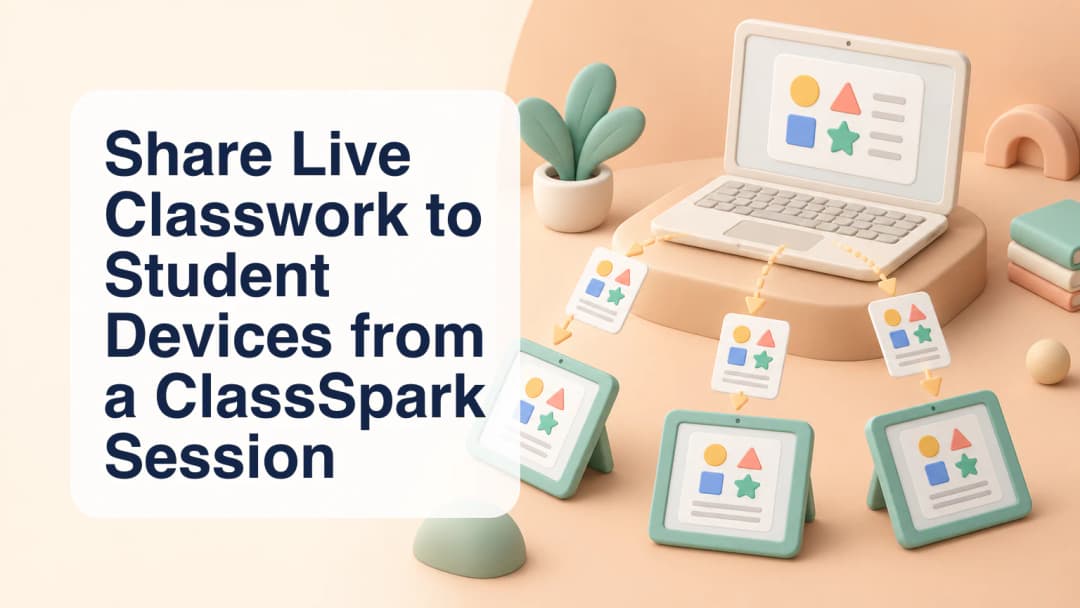
Sharing a worksheet should support the lesson, not interrupt it. In KiwiBee, the full ClassSpark lesson session includes a classwork sharing flow that brings material selection, preparation, and distribution together. Start with one focused task and a clear explanation of what students should do when it reaches their devices.
Start from the right session
Check the class and active lesson session before preparing anything. Sharing needs the correct organizational context, teacher identity, and student roster. A compact ClassSpark view may not show the same extra controls as the full lesson session, so use the session view that exposes the classwork sharing action.
Decide on the learning goal first. For example, a short diagram-labeling task can help students apply an explanation immediately. This is a teaching example, not a promise that a particular worksheet is already included. Choose material you have permission to distribute and avoid unrelated personal information.
Select and explain the material
The sharing dialog supports a new upload, material from the library, or available lesson-plan content. Select the source that fits the lesson instead of creating another copy unnecessarily. Give the classwork a recognizable title so students can distinguish it from other assignments.
Add instructions when they will clarify the task. Explain what to complete, where to respond, and what a useful answer should show. A standard can be selected when appropriate. Keep the instruction short enough to read while still making the expected work clear to a student who missed the spoken explanation.
Preview before sharing
Review the selected material in the preparation step and add annotations where useful. A small highlight or worked starting point can direct attention without completing the task for students. Inspect the material at a readable size and check that no answer key or private note has been included accidentally.
The flow handles original and annotated artifacts separately. Wait for the sharing result rather than treating a moving progress bar as proof of completion. If an error appears, read it and check the existing activity before trying again; closing the dialog does not necessarily cancel uploads or saves already underway.
Check access, then support learning
Successful sharing creates the classwork records and broadcasts the activity to connected students. Ask students to confirm that they can open the intended task before beginning timed work. A successful teacher-side save alone does not prove every device has received or opened the material.
The session can then show the live classwork monitor for the shared activity. Use its submission status and previews to decide where help is needed. A thumbnail is a starting point for a conversation, not sufficient evidence of understanding by itself.
Keep filing and grading distinct
Live classwork is separate from activity-bound evidence uploads. Those uploads enter an ungraded queue; attaching a file does not automatically create a confirmed grade. Read about evidence and assessment and the gradebook when planning your review process.
If you use AI suggestions, review and confirm them before gradebook use. Finish with a brief discussion of the task and decide what needs follow-up. Explore KiwiBee to organize your next ClassSpark lesson.
Explore the platform
Continue with KiwiBee
Choose the KiwiBee workspace or resource library that fits what you need next.
 Home
Home All solutions
 Pricing
 About us
 KiwiBee for Non-profits
 Events & webinars
 For big organisations
 For schools
 For centers
 For team leaders
 For teachers
 AI and resources
 Resources
 Printable worksheets
 Lesson Packs
 Interactive simulations
 Teacher tools
 AI studio
 Ideas and research