Record Individual Behavior Feedback During a Live Class
 By KiwiBee Team
Last updated September 4, 2026
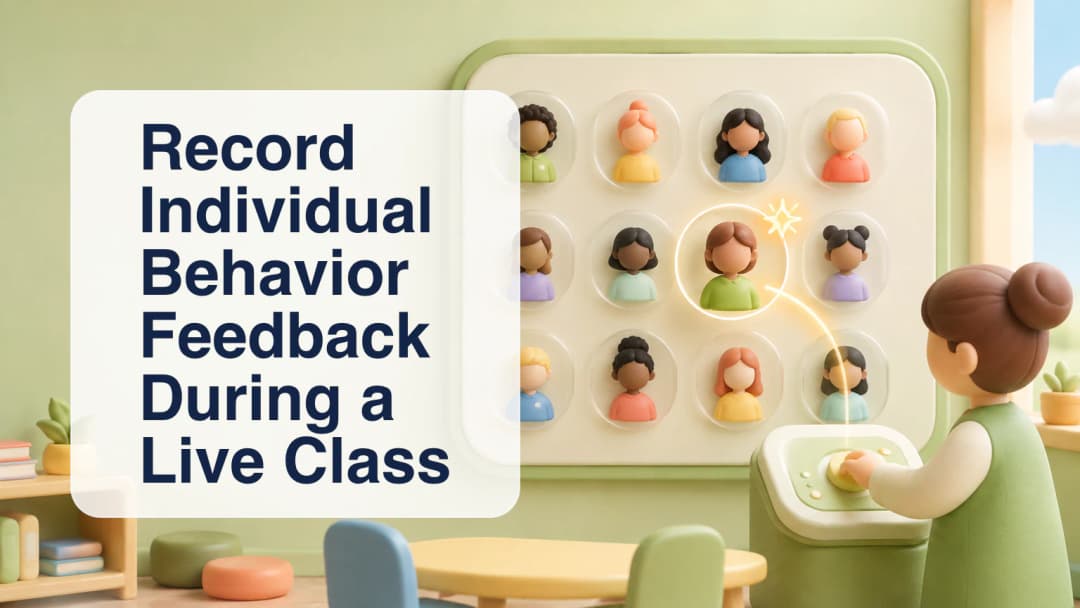
Individual behavior feedback works best when it is immediate, specific, and attached to the correct classroom context. In a live ClassSpark session, a teacher selects an academic student card and opens the Behavior surface. Guest cards deliberately have a narrower Behavior-only path. The roster stays visible behind the student surface, helping the teacher retain awareness of the active class rather than moving into a disconnected record screen.
Select the right participant
Before choosing anything, confirm the selected participant and the current class. The Behavior tab can combine allowed core categories with school-defined or organization-defined choices, subject to class settings. Positive and needs-work options carry their configured signed point meaning. The point value should not replace a factual observation: choose the category that matches what occurred, avoid guessing intent, and never use the interface to label a student's character.
Choose feedback that fits the observation
After a tap, ClassSpark can show an optimistic point bubble and play the matching sound so the teacher gets immediate feedback. That visual response is not proof that persistence succeeded. The scoped write still has to complete with organization, class, student, reporter, date, and available lesson or subject context. If it fails, the board surfaces an error and reloads authoritative totals rather than leaving an unsupported number on screen.
Choose feedback that fits the observation.
Confirm the saved classroom context
Academic student events use the behavior ledger, while ClassSpark-only guest points remain in a separate guest ledger. Guests cannot receive academic notes, attendance, wellbeing, evidence, standard scores, profile edits, or escalation through the guest card. Administrator and Team Leader analytics are separate surfaces and are not guaranteed by this teacher workflow. Record only what the active session permits, then return attention to teaching.
- Select the intended student card.
- Open the Behavior tab.
- Review positive and needs-work choices.
- Choose the category matching the observed action.
- Wait for the save outcome, not only the animation.
- If an error appears, let the roster refresh before retrying.
Useful behavior tracking is a sequence of small, contextual records, not a public ranking. Keep language observable and proportionate, use neutral notes when a point award would distort the event, and respect class-specific categories. Do not award on behalf of a different class or copy sensitive context into an unauthorized channel. When a persisted incident triggers configured parent notification or escalation, treat that as a downstream school workflow rather than a promise that every organization has enabled it. Confirm the participant before tapping. Describe an observed action, not a personality. Use the class's allowed categories. Keep the signed point meaning proportionate. Do not treat animation as persistence proof. Let a failed write refresh totals. Keep guest and academic ledgers separate. Use neutral notes when points do not fit. Protect sensitive context. Avoid public ranking language.
Explore the platform
Continue with KiwiBee
Choose the KiwiBee workspace or resource library that fits what you need next.
 Home
Home All solutions
 Pricing
 About us
 KiwiBee for Non-profits
 Events & webinars
 For big organisations
 For schools
 For centers
 For team leaders
 For teachers
 AI and resources
 Resources
 Printable worksheets
 Lesson Packs
 Interactive simulations
 Teacher tools
 AI studio
 Ideas and research