Build My Classes: A Roster Workflow for Independent Teachers
 By KiwiBee Team
Last updated August 31, 2026
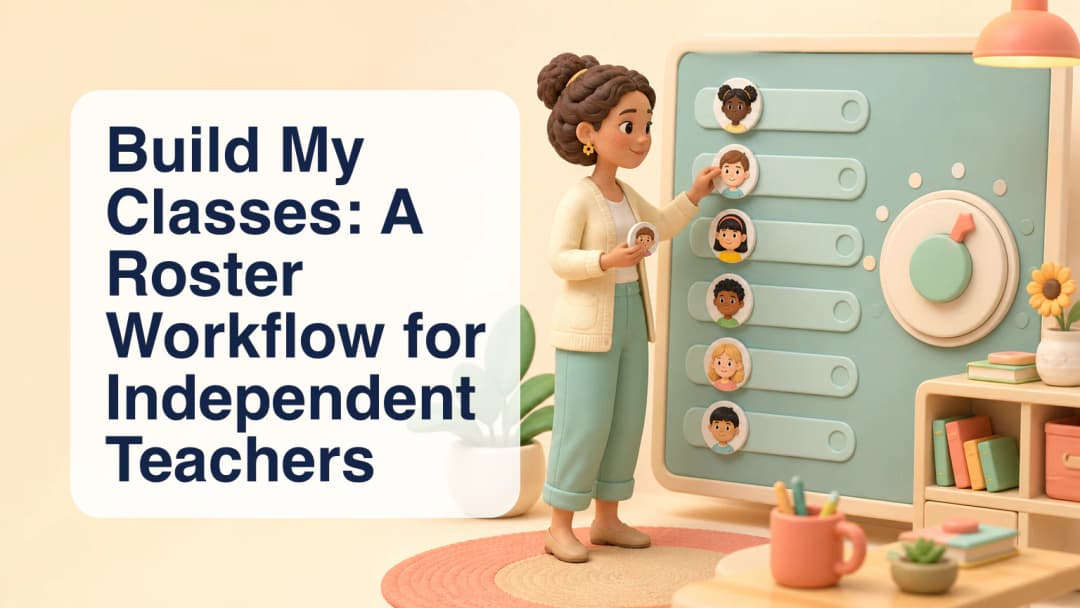
Independent teachers often need a roster workflow that is quick to understand but careful about class membership. In KiwiBee, Build My Classes keeps the work centered on one selected class. The class picker acts as both the roster filter and the enrollment target, so the teacher can see where every typed or pasted name will go. Availability still depends on the active role, organization configuration, class setup, enabled modules, and accessible data.
Start with one selected class
The page belongs to the solo teacher-admin workspace and sits with Classes, Subjects, Students, Build Curriculum, and Build My Schedule. Selecting a class loads its current learners before editing begins. During that switch, the roster is not treated as ready to save. This boundary helps prevent a list from the previous class being applied to a new one by mistake.
Explore the teacher dashboard to understand the wider workspace.
Edit the roster as a clear, reviewable list
The editor uses plain text: one student per line. A teacher can type names or paste a prepared list, then compare it with the loaded roster. The simplicity is useful because it makes additions, possible renames, and removed lines visible before the save action. If the teacher tries to change classes with unsaved edits, a confirmation protects the unfinished work from silent loss.
Temporary credentials may appear when a genuinely new account is created, but that depends on the result and workspace rules. Teachers should share any credentials through an appropriate private channel and avoid copying real student information into screenshots or public notes.
Review the KiwiBee tools for teachers before planning your class workflow.
Save the difference without deleting learners
Saving computes a difference instead of replacing everything blindly. New lines can create or enroll learners through the authorized bulk-add boundary. Changed names use the permitted student-management update path. A cleared or removed line withdraws that learner from this class only. It does not delete the student account, grades, or memberships in other classes.
- Open Build My Classes from the independent teacher workspace.
- Choose the class whose roster you intend to review.
- Wait for the current roster to finish loading before editing.
- Type or paste one student name on each separate line.
- Review additions, name changes, and withdrawals against the selected class.
- Save once, then confirm that the refreshed roster matches your intention.
The goal is not unrestricted roster control. It is a focused, server-authorized workflow that helps an eligible independent teacher work with the right class and preserve student history. Confirm the selected class name before every save. Keep one learner on each line so the proposed change stays readable. Treat the loaded roster as the comparison point for the current edit. Pause if the class is still switching or the roster is still loading. Use the confirmation prompt rather than abandoning unsaved work accidentally.
Explore the platform
Continue with KiwiBee
Choose the KiwiBee workspace or resource library that fits what you need next.
 For big organisations
 For schools
 For centers
 For team leaders
 For teachers
 AI and resources
 Printable worksheets
 Interactive simulations
 Teacher tools
 AI studio
 Ideas and research