What Tool Should I Use to Present My Lessons?
Comparing Canva, Google Slides, and PowerPoint for classroom presentations.
 By KiwiBee· KiwiBee
Last updated June 1, 2026
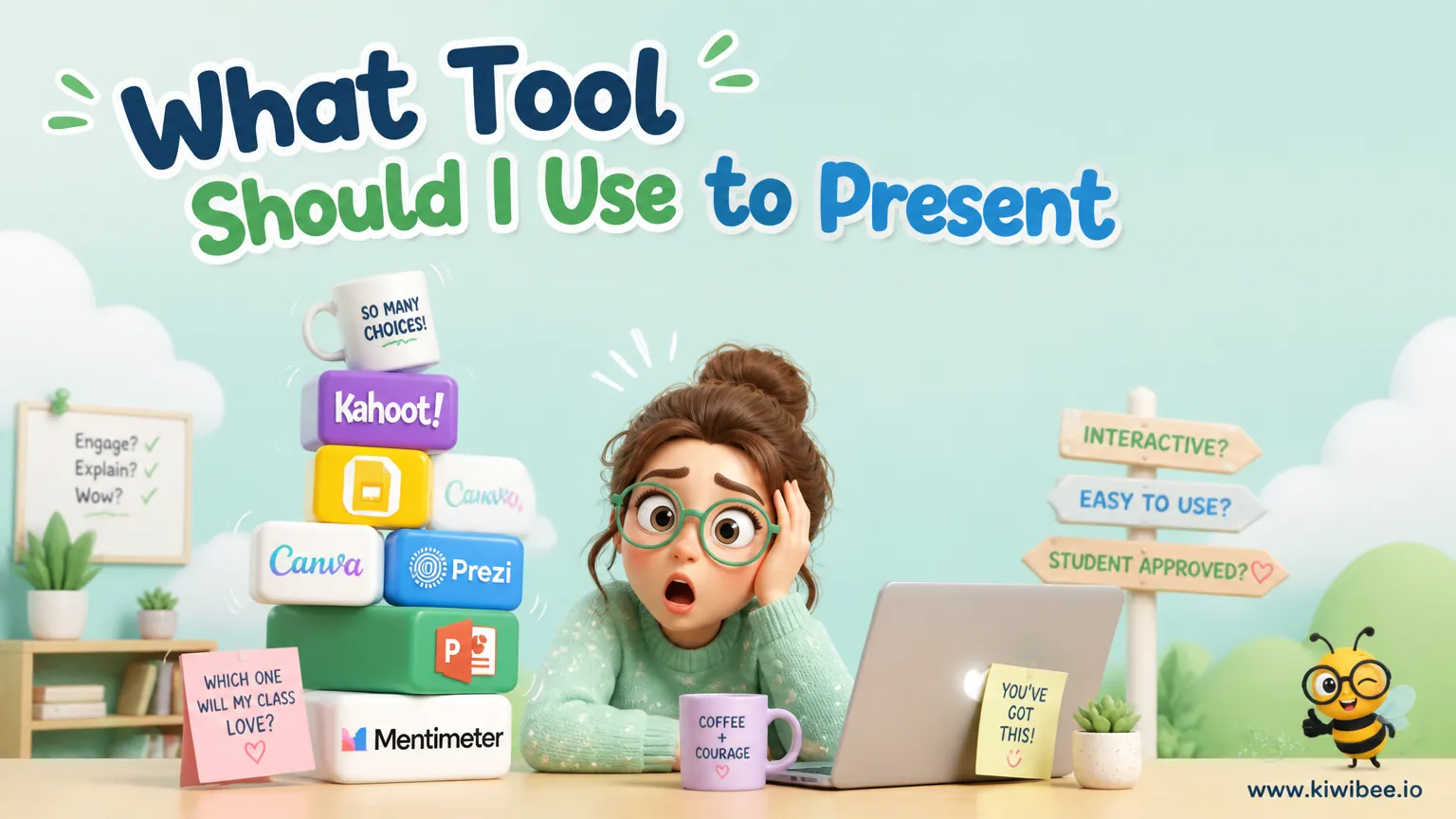
Canva, Google Slides, or PowerPoint? The honest answer depends on what you actually do in class
Every teacher I know has a strong opinion on this. They are usually wrong, because they think the answer is universal when it actually depends entirely on the kind of teaching you do. After running every lesson on all three tools across a few terms each, here is the comparison I would give a new teacher asking the question.
1. Canva — the new favourite, and where it stops working
Canva has become the most loved presentation tool among teachers, and for good reason. It is genuinely easy. The template library is vast. The free tier has more than most teachers will ever need, and the Pro tier is free for verified educators. It handles slides, worksheets, posters, social media graphics, even basic website publishing — one tool, many outputs.
Where it shines for me: visually polished slides without any design effort. The template-driven workflow means even my ugliest content looks reasonable. For one-off presentations, parent-night slides, or any time visual polish matters, Canva wins.
The honest cons: animations are still developing — I cannot do the kind of object choreography that PowerPoint manages. Full-screen presentation mode is locked — once I hit play, I lose the ability to move objects or interact with elements. Embedding feels rough — PDFs, games, and external tools often display awkwardly inside Canva slides. For lessons where I actually want to interact with the slide live, Canva fights me.
2. Google Slides — the harmonised second
Google Slides earns a strong second place mostly on integration. If your school runs on Google Workspace, having slides, sheets, docs, and drive all in the same ecosystem is hard to give up. The collaborative editing is real-time and seamless. Recent updates added an image library that closes part of the gap with Canva. For teachers who value simplicity and harmonisation over visual flash, Google Slides is correct.
Where it works: lightweight presentations, daily lesson slides, simple visuals, anywhere the priority is speed and reliability rather than design.
The honest cons: the template and image library, while improving, is still behind Canva. Working with a PowerPoint file means uploading to Drive first, which is friction if your school still produces PPT files.
3. PowerPoint — the veteran
PowerPoint is what most schools default to because Microsoft offers it free under Office 365 education licences. It has the deepest customisation of any of the three — anything you can imagine doing visually with slides, PowerPoint can do. Animations, transitions, embedded objects, complex interactivity — all built in.
Where it earns its place: when I need offline access (PowerPoint installed locally beats anything web-based for reliability), when I am building a high-stakes presentation I will reuse for years, or when I need elaborate animations that the other tools cannot match.
The honest cons: the learning curve is steep — the same depth that makes PowerPoint powerful makes it intimidating for new teachers. The default visual style is dated unless you put work in. And without a paid layer like Designer (or the Office 365 education license), the template library is sparse.
My honest recommendations by use case
Daily lesson slides at speed: Google Slides. The friction is lowest, the integration is highest, the visual standard is acceptable.
Parent night, school open house, polished one-off: Canva. The visual quality lift is worth the friction cost.
High-stakes presentations you will reuse for years, or anything needing serious animation: PowerPoint. The depth pays off when you invest the time.
Live interactive lessons where you want to move things on the slide, click into games, or annotate as students respond: none of the three are really designed for this. Which is the next part.
Where I land for actual live teaching
All three are designed as static presentation tools. For live teaching — annotating, dragging objects, running games, responding to student input on the same screen — I switched to KiwiBee's interactive whiteboard, which is purpose-built for this. The slides tie into the lesson in the curriculum planner, so the whiteboard already knows which unit I am on, and Wordwall-style mini-games drop into the slide deck without me leaving the tool. I still use Canva for parent-facing presentations and Google Slides for static lesson slides. For the live teaching surface, the dedicated whiteboard wins.
Where this fits in KiwiBee
If you want a presenter tool that already knows your lesson, KiwiBee adds an interactive whiteboard tied to your plan, a curriculum-aware lesson runner, and Wordwall-style games you can drop into the slides. Try it free at app.kiwibee.io.
Explore the platform
Continue with KiwiBee
Choose the KiwiBee workspace or resource library that fits what you need next.
Related posts
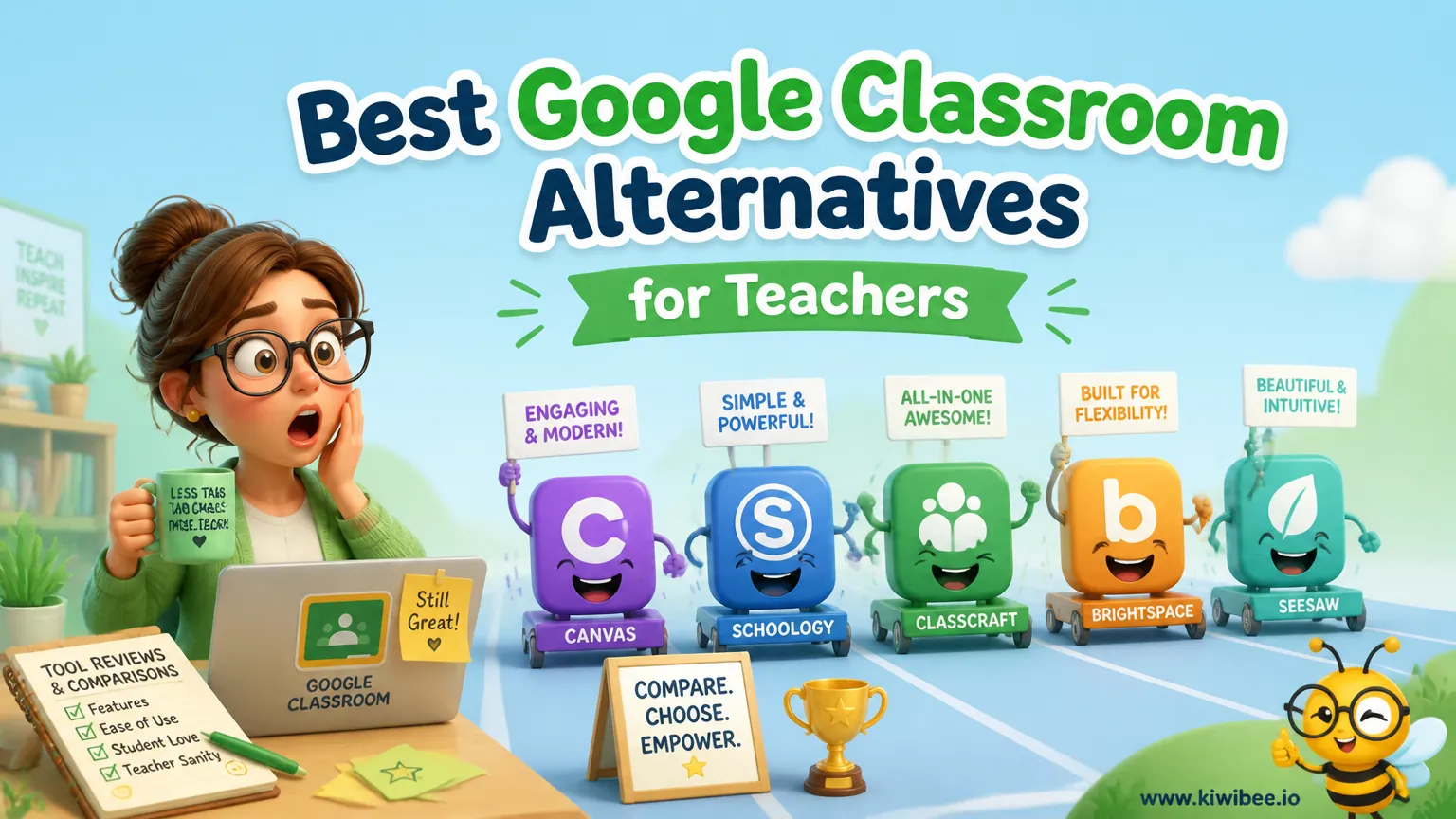
Best Google Classroom Alternatives for Teachers (2026)
Best Google Classroom Alternatives for Teachers (2026). An honest review of the leading classroom tools with strengths, weaknesses, and how to pick the right one for your context.
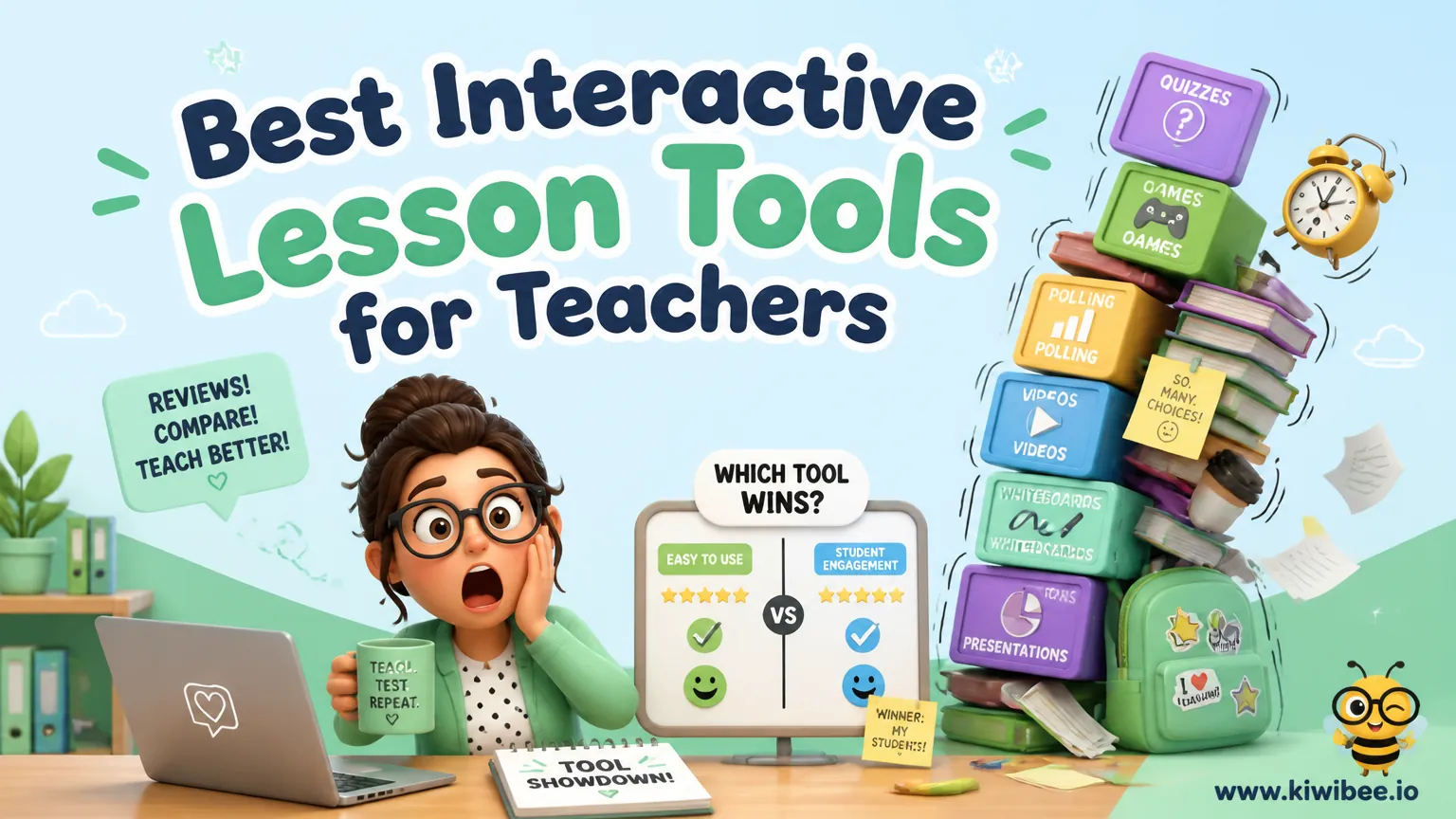
Best Interactive Lesson Tools for Teachers in 2026
Best Interactive Lesson Tools for Teachers in 2026. An honest review of the leading classroom tools with strengths, weaknesses, and how to pick the right one for your context.
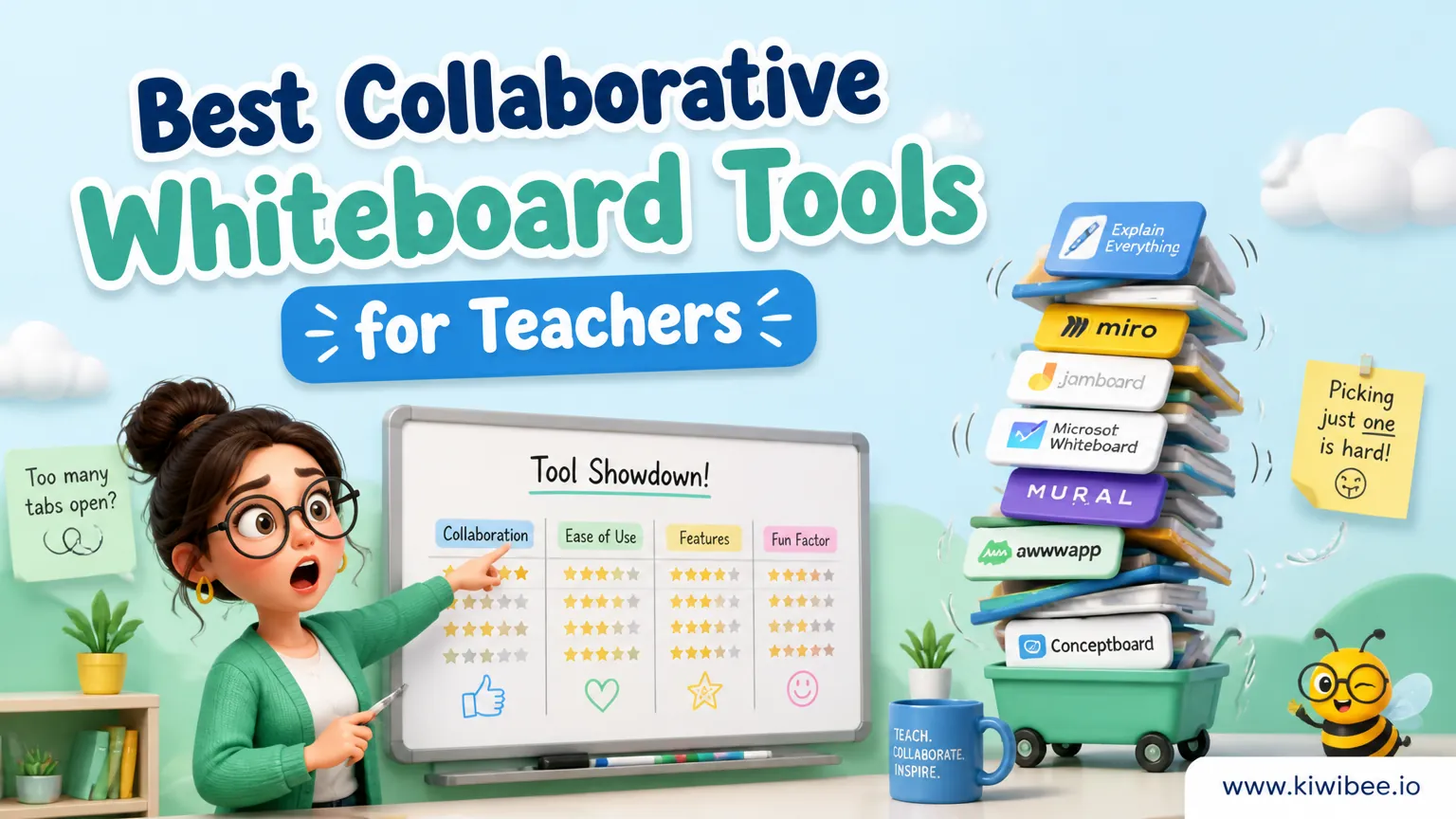
Best Collaborative Whiteboard Tools for Teachers (2026)
Best Collaborative Whiteboard Tools for Teachers (2026). An honest review of the leading classroom tools with strengths, weaknesses, and how to pick the right one for your context.
 For big organisations
 For schools
 For centers
 For team leaders
 For teachers
 AI and resources
 Printable worksheets
 Teacher tools
 AI studio
 Ideas and research