A Practical Tour of KiwiBee's Teacher Dashboard for the School Day
 By KiwiBee Team
Last updated August 30, 2026
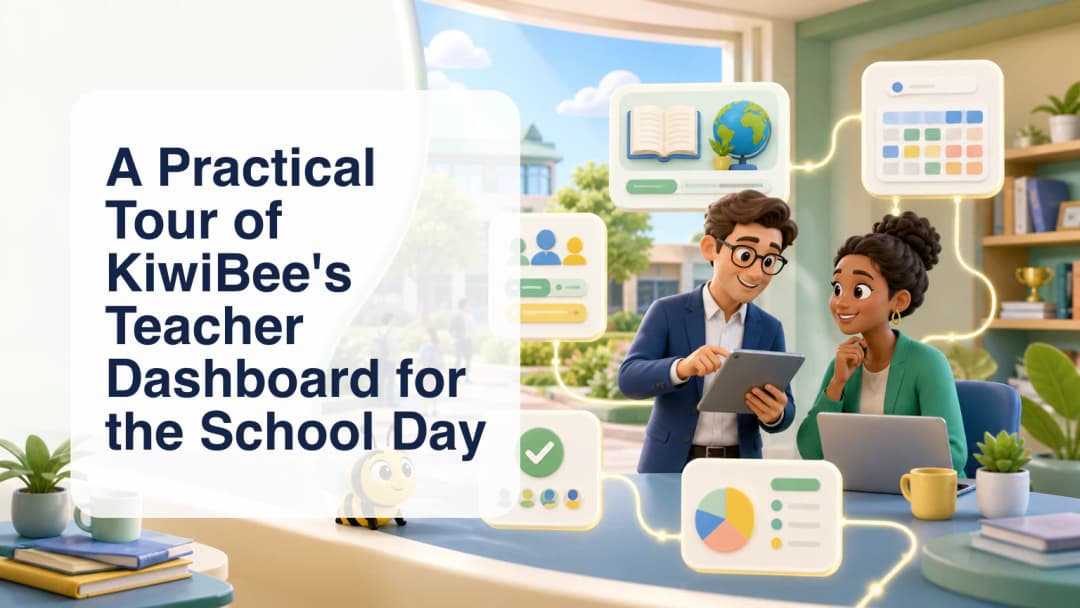
A teacher dashboard for schools is most useful when it reflects the shape of an actual day. KiwiBee’s teacher workspace brings daily classroom tasks into one role-aware home: teachers can move among their schedule, classes, curriculum resources, assignments, communication, reports, and gradebook without treating each as an unrelated system.
Begin with today’s teaching context
The dashboard gives teachers a starting point for the work already attached to them. Today’s schedule can surface the relevant class occurrence, while class, curriculum, homework, and reporting areas remain close at hand. That matters when a teacher needs to check what is next, open the right class, and continue into planning or follow-up.
KiwiBee does not assume that every teacher sees the same menu. Access depends on the signed-in role, organization configuration, assigned classes, and enabled modules. A teacher administrator can also receive the Build My Classes workflow, while an ordinary teacher stays focused on the classes and tools assigned to that role.
Move between connected jobs
The workspace includes visible routes for Messages, ClassSpark, Schedule, Lessons, Assignments, Games, Reports, Class Stories, Gradebook, Curriculums, Students, and Teams when the corresponding access is available. Under Lessons, teachers can reach their own materials, lesson plans, worksheets, and printables. This creates a practical chain: review the day, open the class context, prepare a resource, teach, record evidence, and return to reporting.
The teacher dashboard overview explains the central workspace, while the broader tools for teachers page shows how it fits a school’s teaching model.
Use a simple daily rhythm
- Before class, check the current schedule and open the relevant class or curriculum.
- During preparation, work from Lessons or assigned resources rather than rebuilding context elsewhere.
- After teaching, record attendance or evidence in the appropriate workflow and review assignments or gradebook information.
- When coordination is needed, use Messages, Teams, or Class Stories according to the audience and school setup.
Some future-facing items may appear in a Coming Soon group. Their presence should not be read as active access. Schools should evaluate the workspace using the modules and role permissions actually configured for their organization.
For implementation, schools can map each visible page to a real staff responsibility. Decide who maintains class rosters, who checks schedule changes, where evidence is reviewed, and which channel is appropriate for families or colleagues. That small governance exercise helps the dashboard reflect an agreed workflow instead of becoming a collection of shortcuts.
During a rollout, a short end-of-day review can also test whether the workspace matches practice. Teachers can note which route they used, where they changed context, and which task still required a separate handoff. Leaders can use that feedback to adjust assignments, permissions, or guidance without promising that every workflow will look identical.
KiwiBee’s value here is continuity: one teacher workspace can keep the day’s jobs discoverable while preserving role and school boundaries. Create an account to explore the available setup for your teaching context.
Explore the platform
Continue with KiwiBee
Choose the KiwiBee workspace or resource library that fits what you need next.
 For big organisations
 For schools
 For centers
 For team leaders
 For teachers
 AI and resources
 Printable worksheets
 Interactive simulations
 Teacher tools
 AI studio
 Ideas and research